Minnty Sound Server
The desktop server captures the audio playing on your Windows or Linux PC and sends it to connected devices on your local network.
Supported platforms
Windows
The installer includes the Microsoft runtime needed by the app. Windows Firewall may ask for permission on private networks.
Linux
AppImage, DEB, RPM, and tarball downloads are available for supported Linux systems.
Download and run
Windows
Download the latest Minnty Sound Server release from GitHub. On Windows, download and run the installer, then open Minnty Sound Server from the Start menu. On first launch, allow it through Windows Firewall on private networks if prompted.
Microsoft Defender SmartScreen may show a warning for a newly downloaded or unfamiliar app. Confirm that you downloaded the installer from the official GitHub releases page, then select More info and Run anyway only if you trust it. Windows 11 Smart App Control is stricter and may block an app without offering an exception. It cannot be bypassed for one app, you'll need to disable it. You should be able to re-enable it later. See Microsoft's Smart App Control FAQ for more information.
Minnty Sound Server is unlikely to be blocked, and if blocked, it should only be temporary.
Linux
On Linux, download the package that suits your distribution: AppImage, DEB, RPM, or tarball. Install it using your usual package tool where applicable, or make the AppImage executable before running it. Start Minnty Sound Server from your application launcher or by running the downloaded application. When it starts, the tray launcher becomes available.
Use the local control interface
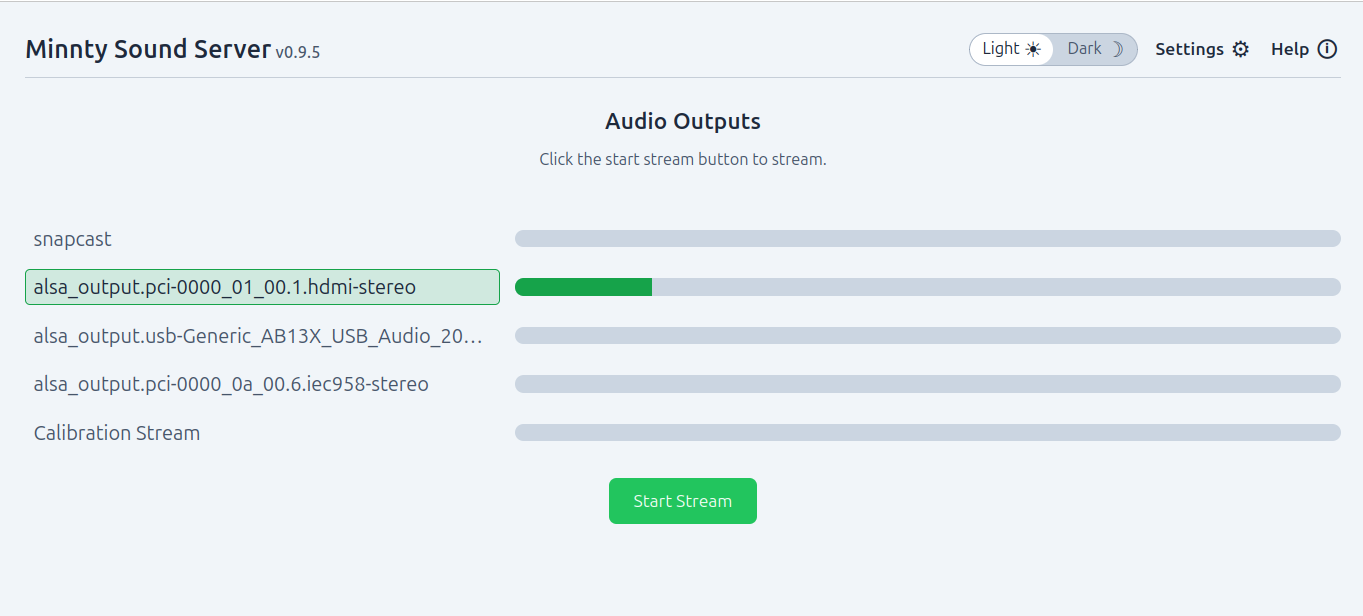
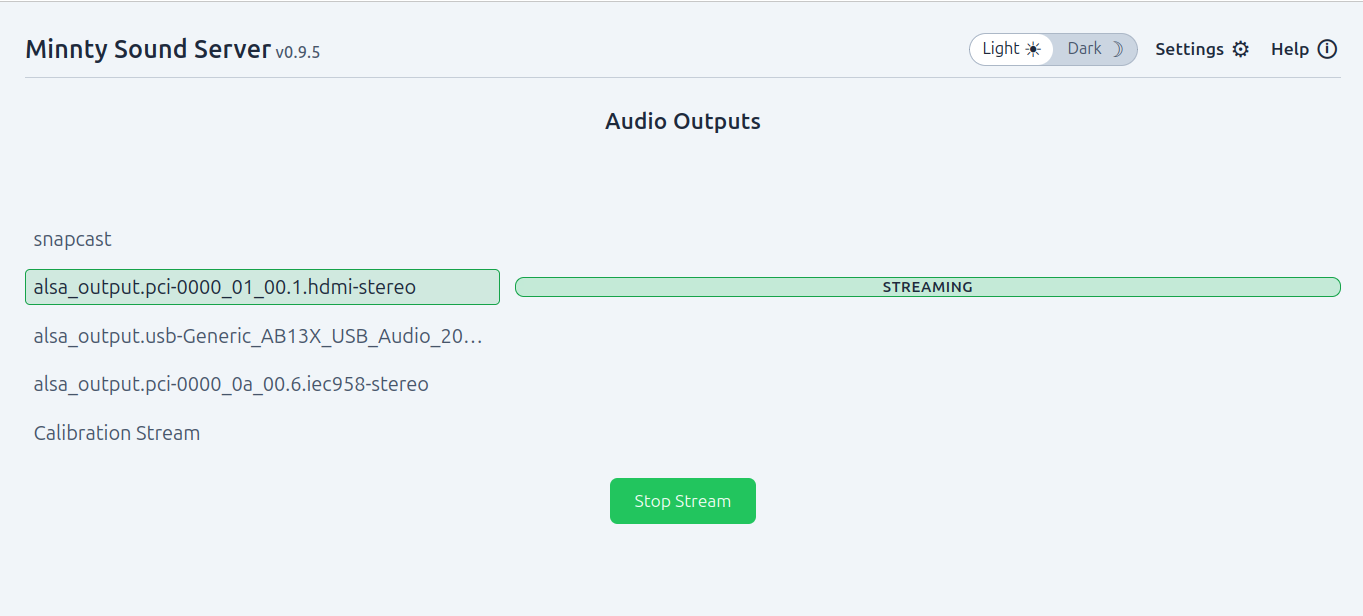
The tray launcher opens a browser to http://127.0.0.1:3000. You should see the controls shown in the screenshot below. Select the currently-playing output (the audio meter should be moving), then click Start Stream.
Useful behavior
- Devices usually find the server automatically; you can also add it manually.
- Playback controls in Minnty can control supported media players on the PC.
- Listeners can show the current track and playback state.
- A calibration stream is available for timing and setup checks without playing normal audio.
On Windows, allow the app through Firewall on the network profile you use at home. If Firewall blocks it, devices may discover the server but fail to receive audio.