Troubleshooting
Check the network first, then the source device, then playback settings. Most problems can be fixed without reinstalling anything.
The server does not appear
- Check that the serber and client are on the same local network.
- Open the server screen and check that streaming is active.
- On Windows, check that Firewall allows Minnty Sound Server.
- Try adding the server manually using the PC's local address and port
40110. - Try USB tethering if your Wi-Fi stops devices from finding each other.
The server appears but there is no audio
- Check that the PC source selected in the server screen is the one playing sound.
- Check the Android device media volume and make sure playback is running.
- Stop and start the stream, then reconnect the Android device.
- For Android server mode, check that the source app allows audio capture and grant permission again.
Audio is choppy or cuts out
- Move closer to the Wi-Fi access point or use a less busy Wi-Fi band.
- Try the Balanced or Stable playback preset.
- Use USB tethering for a direct connection with less interference.
- Pause downloads, video calls, and battery-saving features on the listening device.
See playback presets and Android settings
Devices are not quite in sync
- Use a synchronised playback mode and Scheduled playback on each device.
- Allow up to 30 seconds for the devices to lock their timing together.
- If a device has not locked after about 30 seconds, stop and start playback again.
- Test without Bluetooth devices first, as their audio delay can differ between devices.
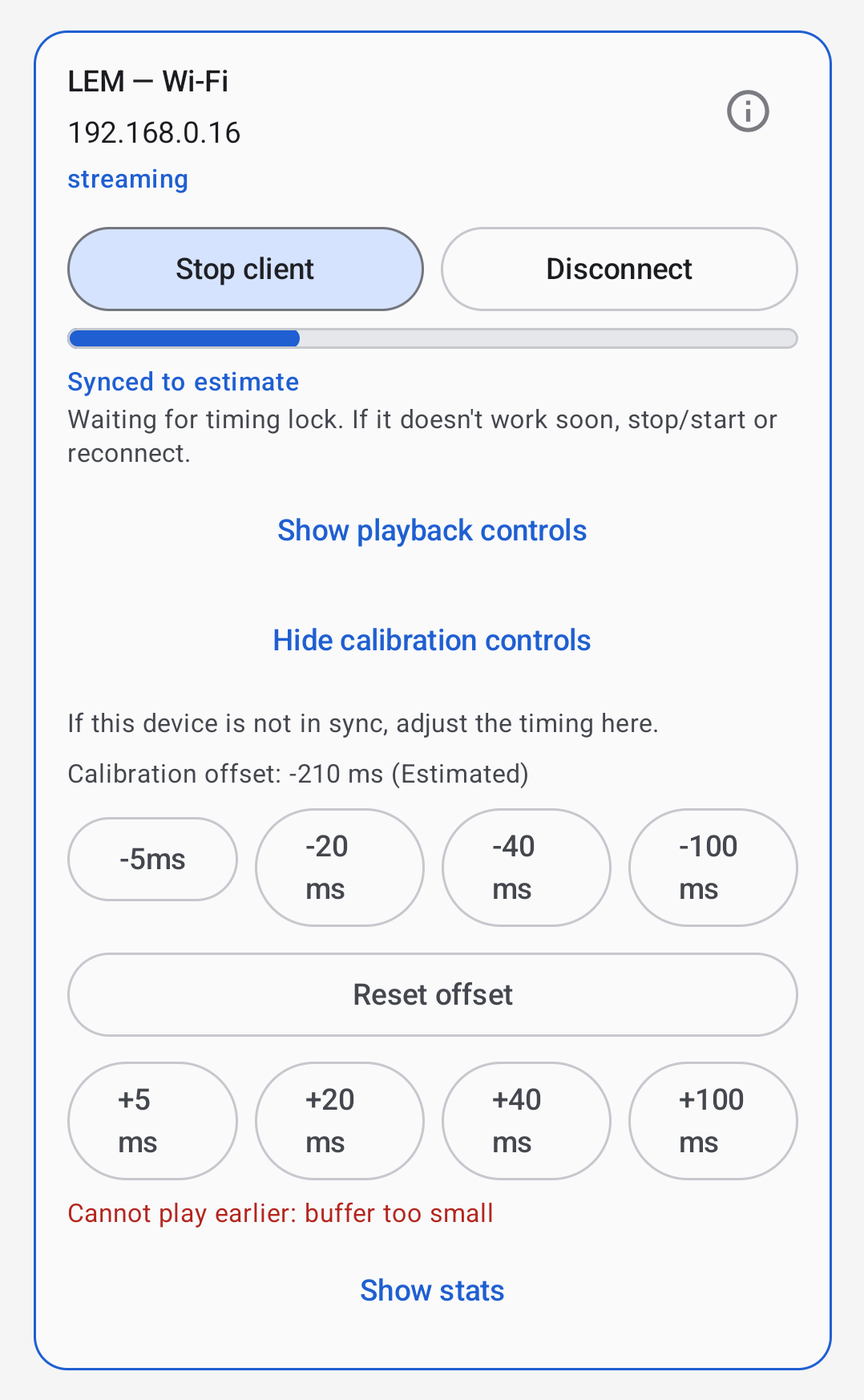
- Use manual calibration to bring devices into sync. See Sync playback.
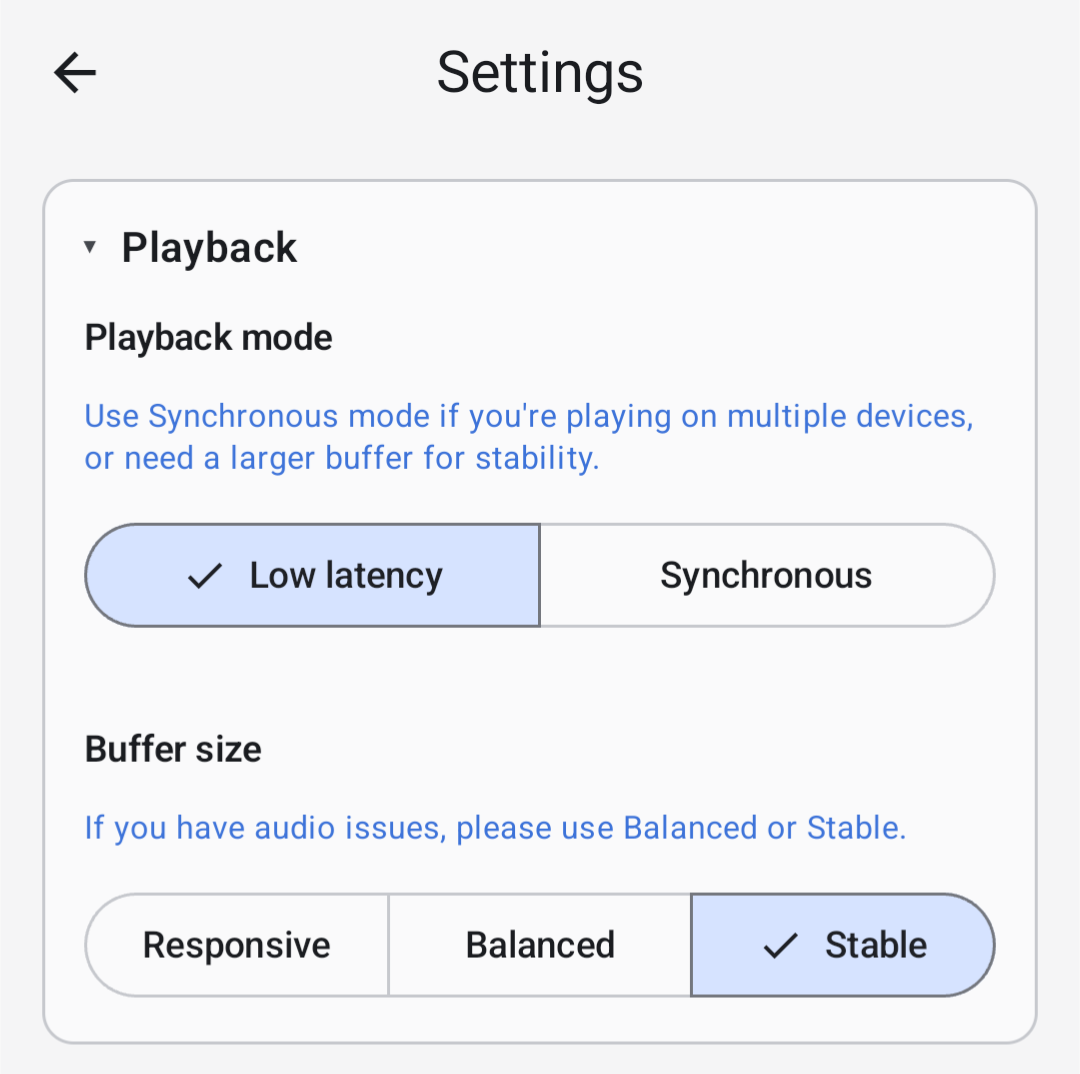
“Cannot play earlier” error when calibrating
This error means you are trying to play the audio earlier than it's being received and processed. The solution is to make all devices play later. Go into the settings on all your devices, and under Sync latency, make sure Stable is selected. This ensures the largest buffer size is being used. If that's not enough, use manual calibration on your other devices to make them play later.
Still stuck?
Include the server platform, Android device model, network type, selected playback mode, and what the app shows when contacting support@minnty.co.uk.