Quick start
The most direct setup is a PC running Minnty Sound Server with one or more Android devices listening on the same network.
Before you begin
- Install Minnty Sound on the Android device you want to listen on.
- Install Minnty Sound Server on a supported Windows or Linux PC. See instructions here.
- Connect every device to the same Wi-Fi, wired network, VPN, or USB tethering connection.
You can find more about the PC server on GitHub. The server is open source.
Start a PC stream
- Open Minnty Sound Server on the PC.
- Play some audio on the PC.
- In the server's local browser interface, choose the active audio output.
- Select Start Stream.
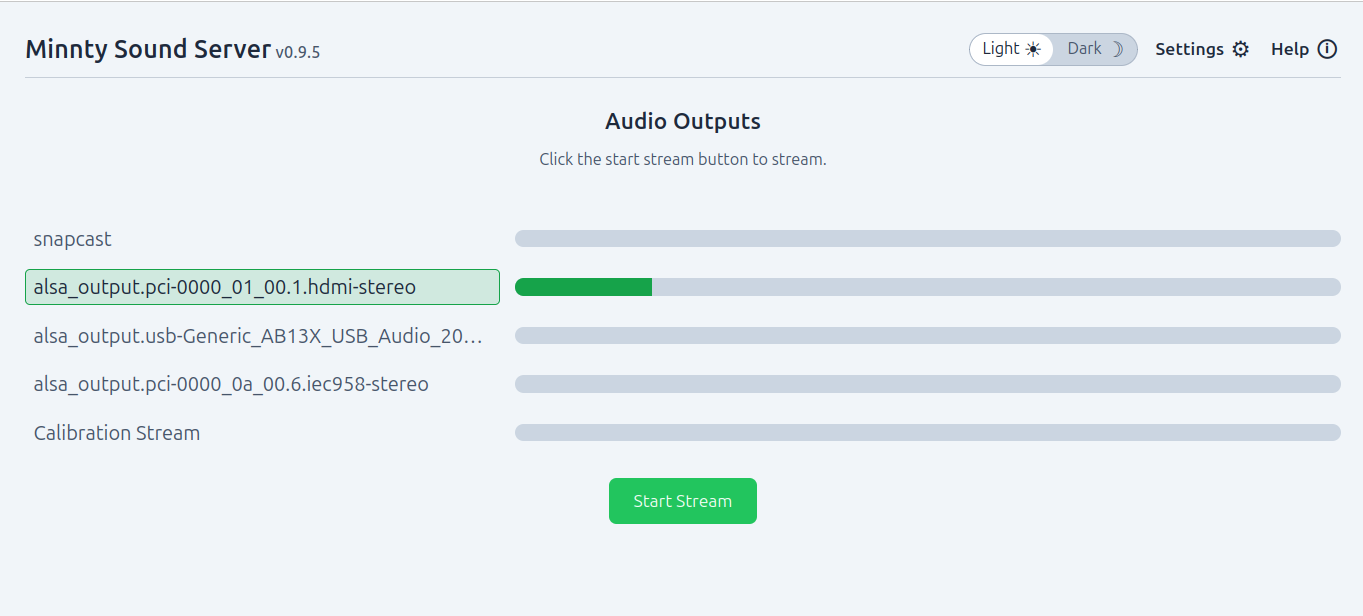
Connect the Android app
- Open Minnty Sound on Android.
- Your server should appear in the server list automatically.
- Select it, then press Connect.
- If discovery is unavailable, add the PC's local IP address manually using the Add server button.
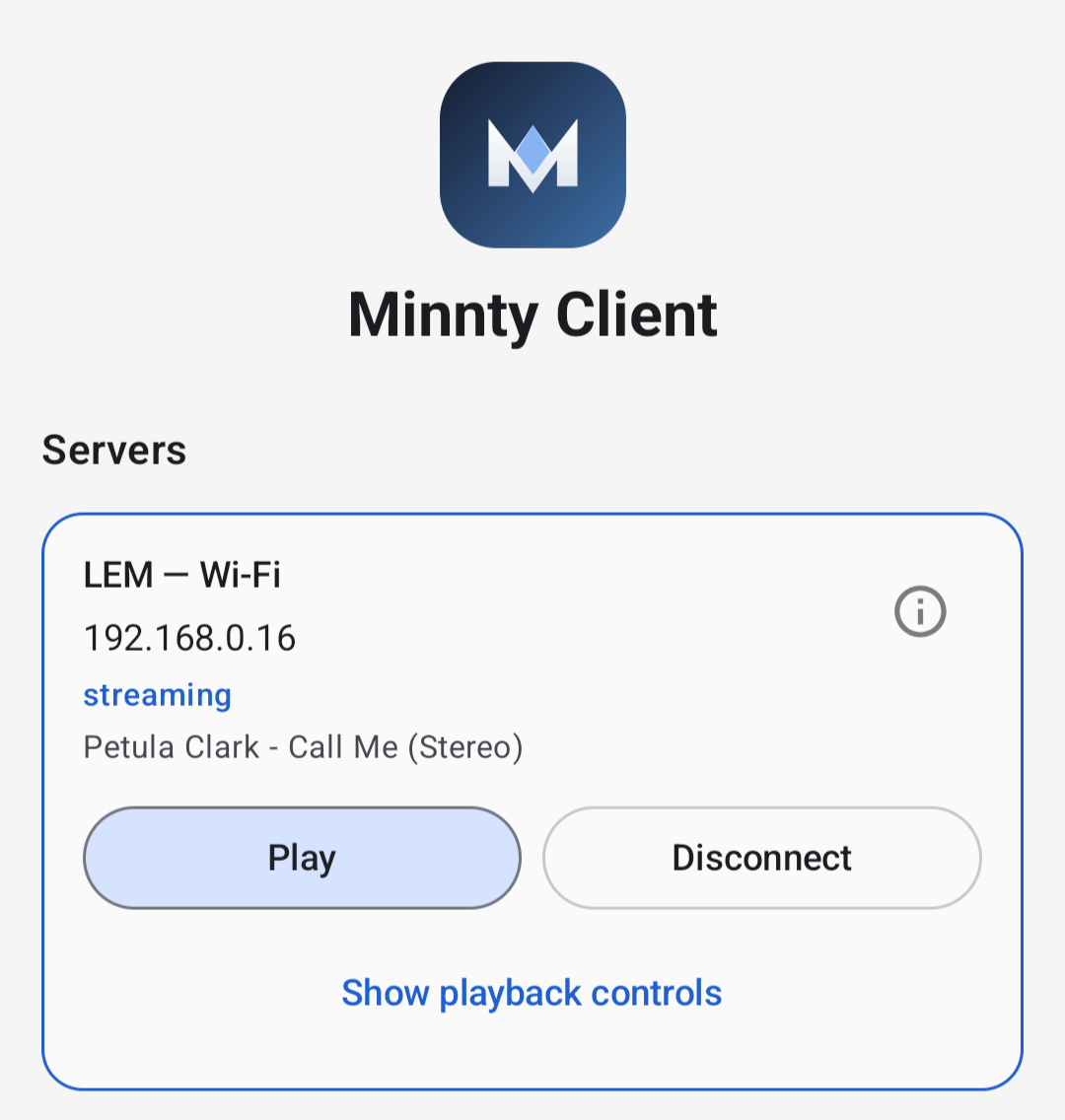
Playback
- Once the client is connected to a server, press the Play button. You should hear the streamed audio.
- If you don't hear anything, make sure the server is streaming audio (see above).
- Click Show playback controls to access Play, Pause and Skip buttons, as well as volume controls. If supported, you'll also see a seekbar.
- The volume controls on the client can control server volume, if the option is enabled in the server settings.
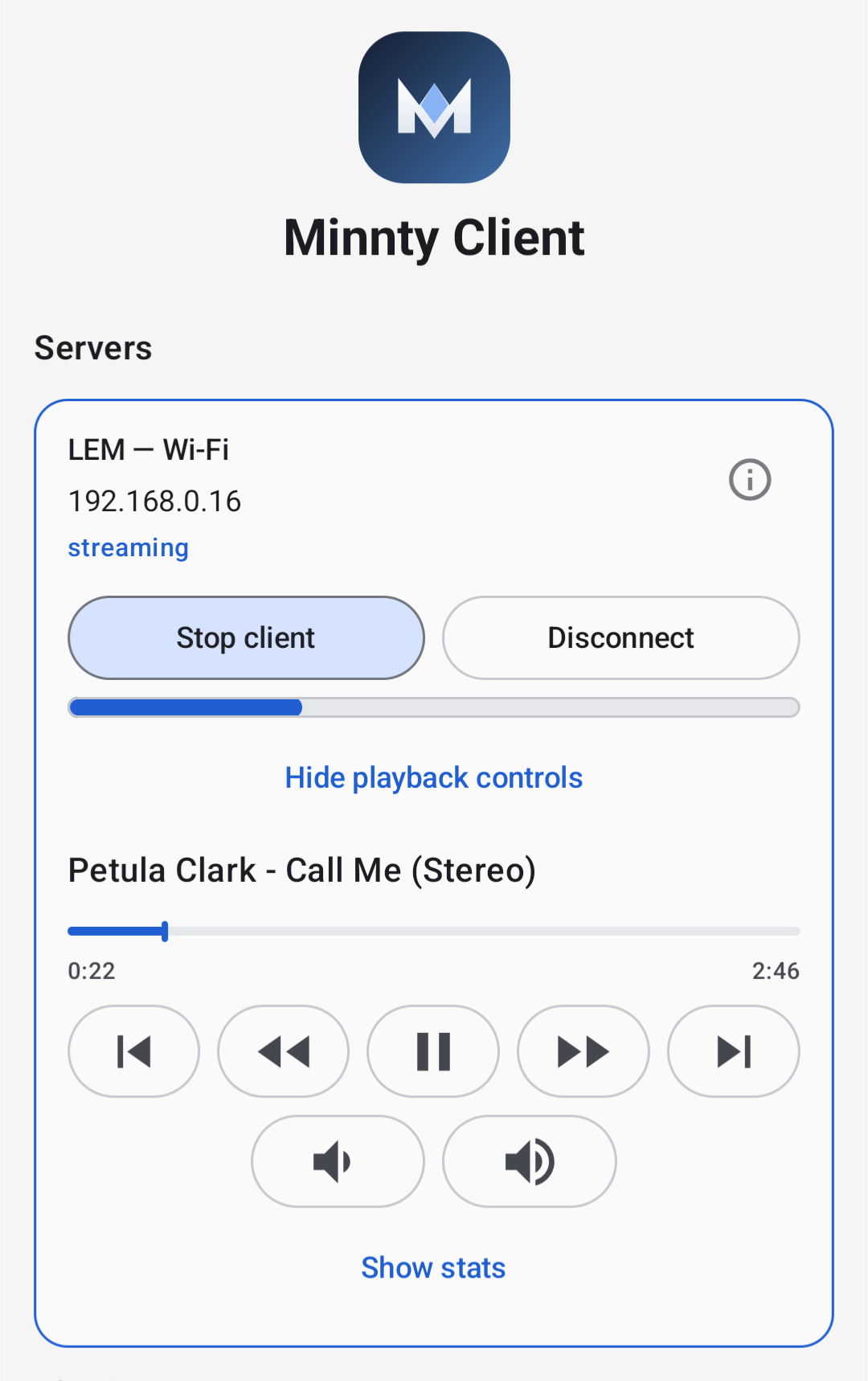
For a first test, use the Balanced playback mode. Move to Responsive for lower delay or Stable when your network needs more headroom. See the Android settings guide.