Synchronised playback
Synchronised playback uses timestamp lock keep multiple Android clients playing in sync. Once lock is acquired, alignment is normally very close (within a couple of milliseconds).
Older devices may have extra latency in the audio path. You can correct this manually (see Manual Calibration, below).
When to use Synchronous mode
- Use it for multiple speakers in one room or nearby rooms.
- Use lower-latency mode for listening on a single device when responsiveness matters more than keeping devices together.
- Choose Scheduled playback in synchronised mode. It is the recommended method and keeps audio timing steady.
Set it up
- Connect every device to the same Minnty server.
- Open Settings on each device.
- Set the playback mode to Synchronous on each device.
- Make sure each device has the same setting for sync latency: either Responsive, Balanced or Stable.
- Set playback method to Scheduled for best sync performance.
- Start playback and allow up to 30 seconds for the devices to lock to the server timestamp.
- If a device has not locked after about 30 seconds, stop and start playback again.
Please note, some older devices may not be able to achieve timestamp lock. They will remain synced to an estimate of the server clock. You can bring them into sync using manual calibration (see below).
More on playback and sync settings
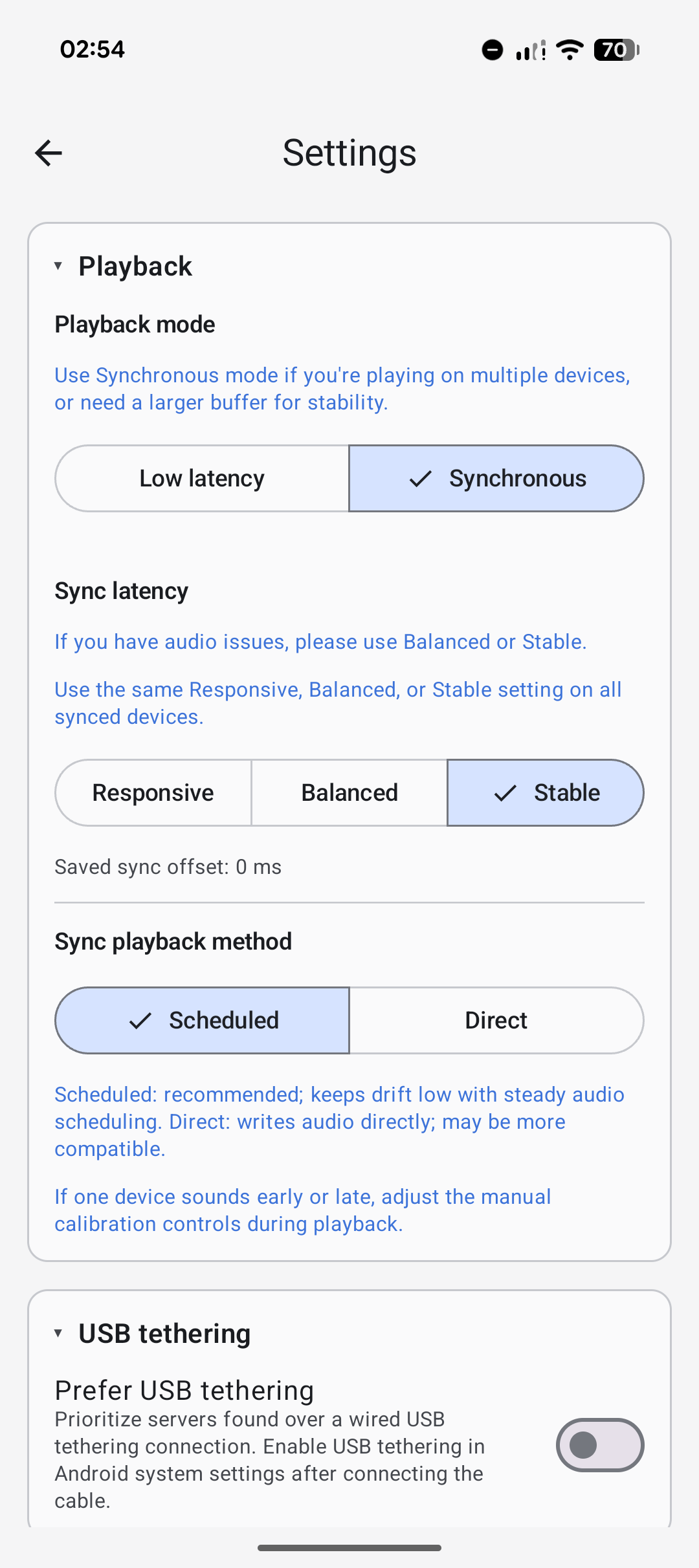
Scheduled mode is the normal choice for synced playback. Direct is an alternative for unusual device compatibility cases. Do not compare devices through Bluetooth speakers unless you expect their delay to differ.
Manual Calibration
Manual calibration is helpful for older devices, which have extra latency in the audio path, or don't have timestamp lock. Enable it as follows.
- Expand the Calibration controls for the current server.
- If the device sounds late, use the negative buttons in the top row to make it play earlier.
- If the device is early, use the positive buttons in the bottom row to make it play later.
- Keep adjusting the offset until the device is playing in sync with other devices.
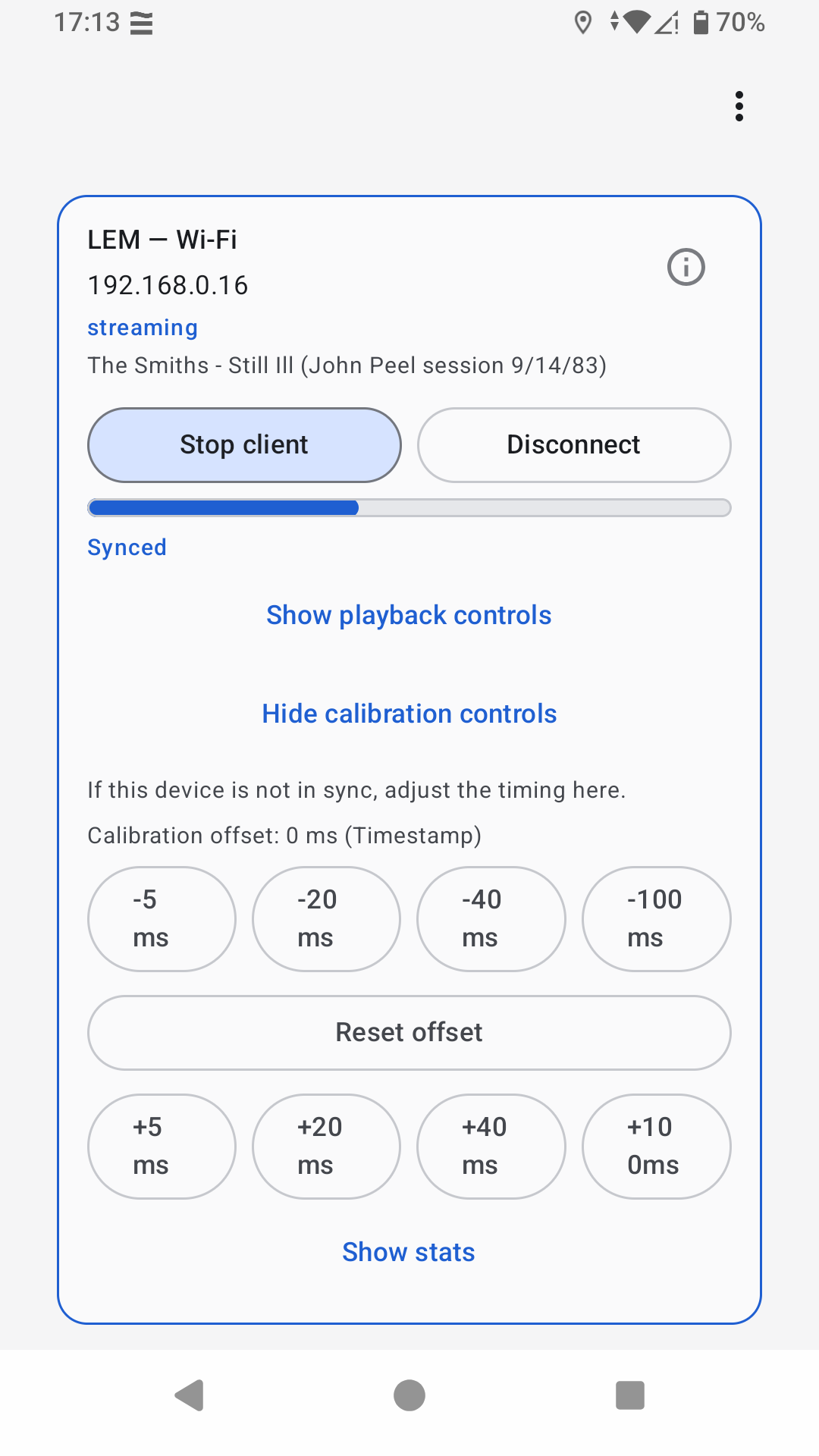
If a device has a lot of latency, make sure Sync latency is set to "Stable" in the settings. This will give you more room to play with when manually calibrating.